A kit made from your own photo is a lovely gift, but it can be hard to imagine how a picture turns into thousands of tiny drills, numbered areas or X stitches. Our free photo preview shows it in a few seconds, and your photo never leaves your phone or computer while you try it.
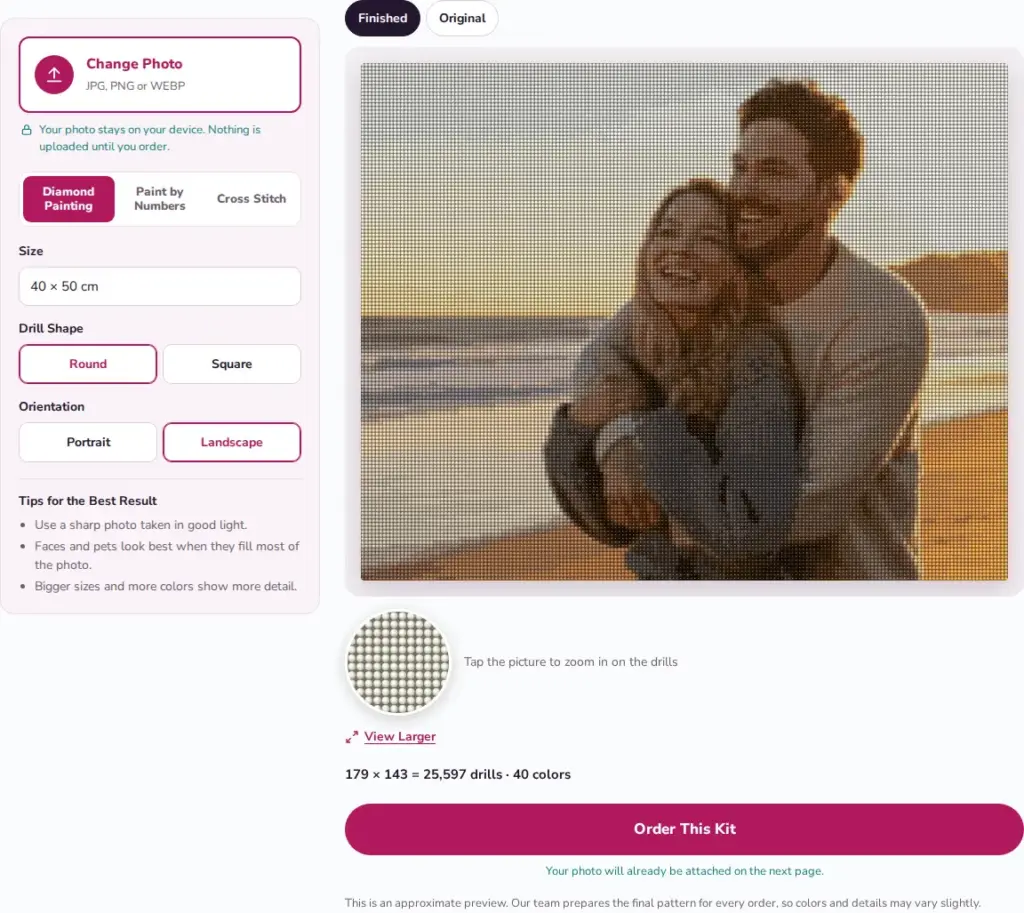
Step 1: Choose Your Photo
Open the photo preview and tap Choose Your Photo. JPG, PNG and WEBP all work. Pick the original file from your gallery rather than a screenshot, because screenshots and photos forwarded through messaging apps lose detail.
Step 2: Pick the Craft and the Size
- Diamond Painting: choose the size and the drill shape. Round drills are 2.8 mm and square drills are 2.5 mm, the same as in our kits.
- Paint by Numbers: choose the size and 24, 36 or 48 paint colors. More colors keep more detail.
- Cross Stitch: choose the size and the fabric count, from 11CT to 18CT. A higher count means smaller stitches and more detail.
- Orientation: the tool picks portrait or landscape from your photo, and you can switch it.
Step 3: Read the Preview
For diamond painting you see every drill at the real size of the kit, plus how many drills and colors it uses. Tap the picture to zoom in with the magnifier.

For paint by numbers you can switch between the numbered canvas (what arrives at your home), the finished painting and your original photo. Below it you see the list of paint colors. On a phone, tap View Larger to read the numbers.
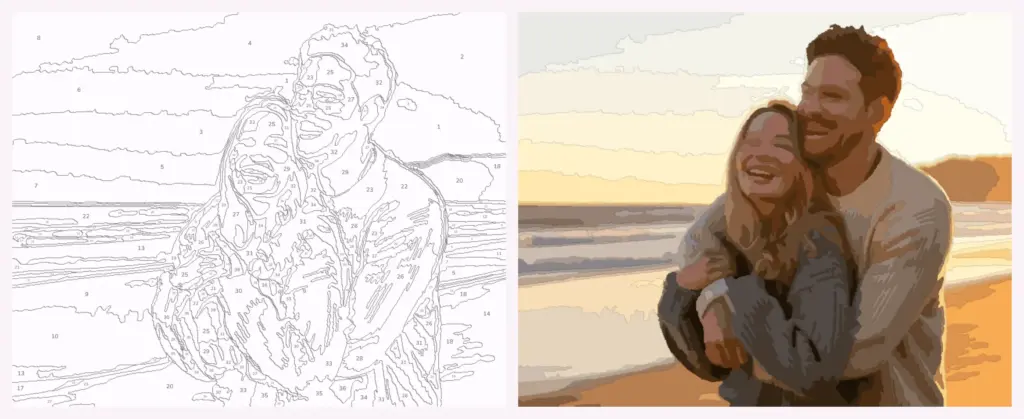
For cross stitch you see each X stitch on the fabric and the printed canvas you stitch over.
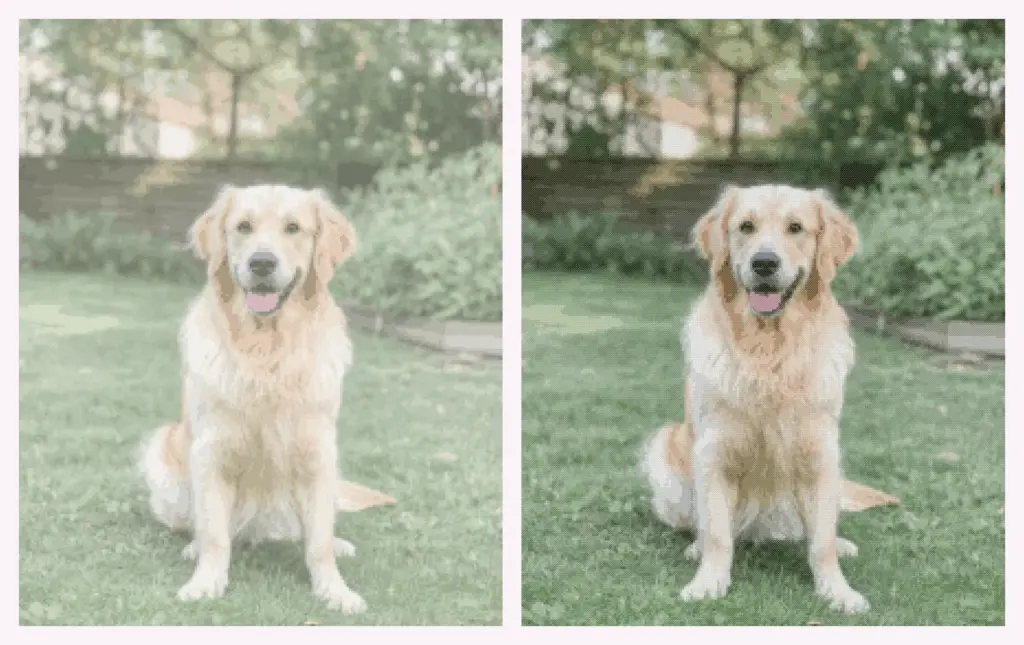
Step 4: Adjust the Crop and Read the Photo Check
After you choose a photo, the Adjust Your Photo box shows which part of the picture goes on the kit. Drag the frame and use the zoom so the faces you want fill the canvas. If you adjust it, the photo attached to your order is exactly the part you chose.
Below the preview, the Photo Check tells you if the resolution is enough for the size you picked, and warns you if the photo is dark, too bright, low in contrast or out of focus. If you see a warning, try a smaller size or another photo before you order.
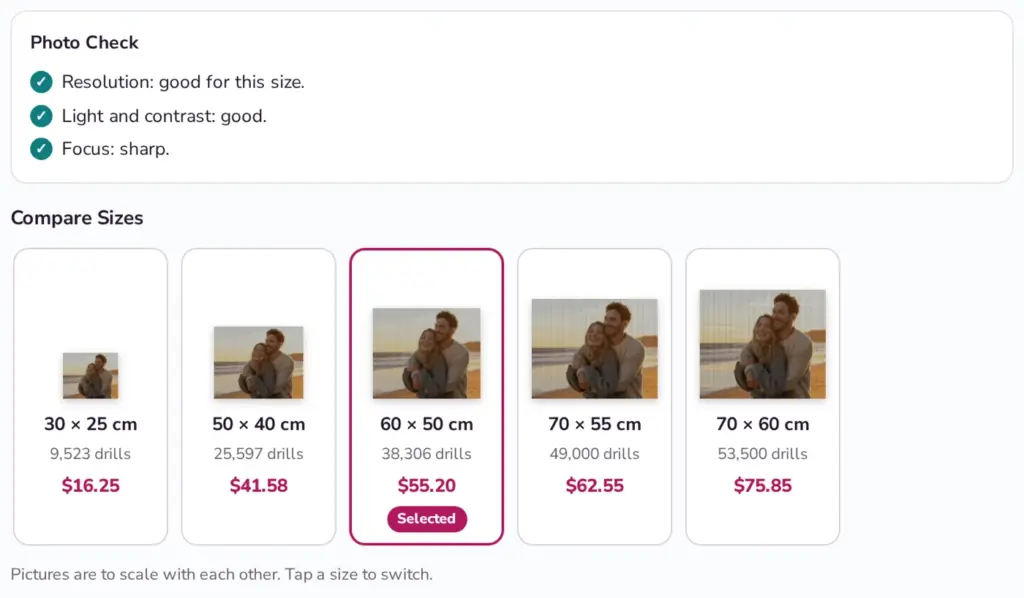
Step 5: Compare Sizes and See It on Your Wall
Under Compare Sizes you see your own picture in nearby sizes, to scale with each other, with the number of drills and the price in your currency. Tap a size to switch to it.
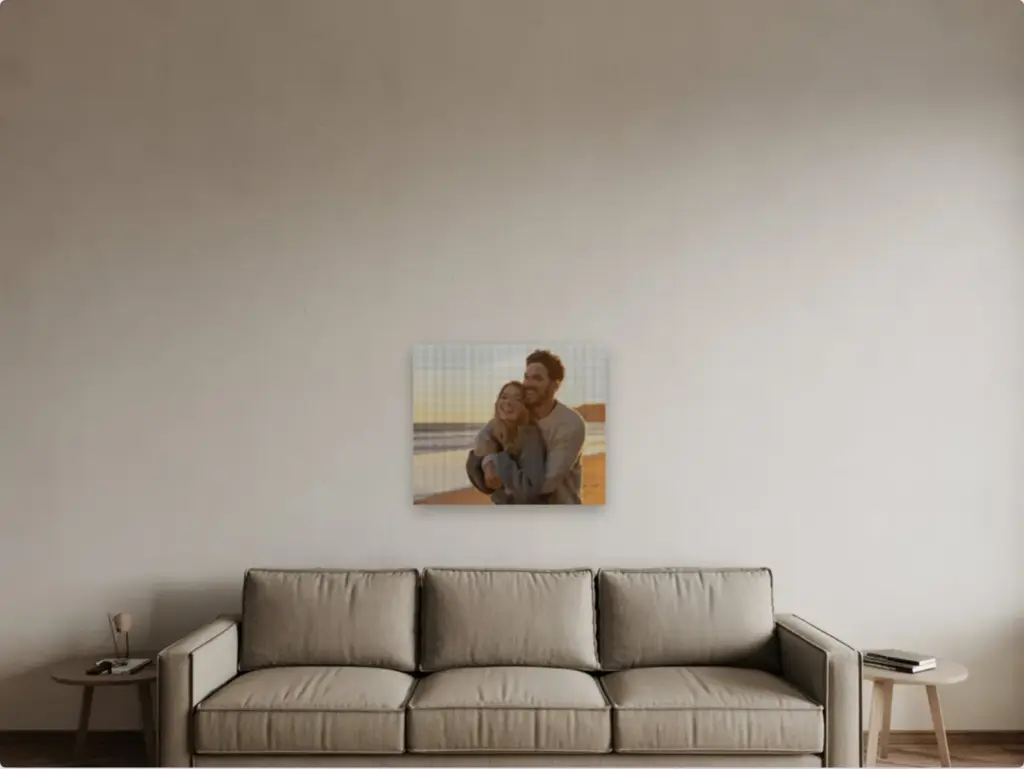
Then tap On the Wall. The kit appears to scale above a sofa about 220 cm (87 in) wide, so you can see how big 40 x 50 cm or 70 x 90 cm really is in a room.
Step 6: Order with Your Photo Already Attached
Happy with the result? Tap Order This Kit. The product page opens with your size and options selected and your photo already attached, so you don’t need to upload it again. You can still change the photo there, or email it to us after you order.
Good to Know
- The preview is a close approximation. Our team prepares the final pattern for every order, so colors and small details can vary slightly.
- Try two or three sizes. Faces and group photos look much better on bigger canvases. Our size guide helps you choose.
- Not sure about round or square drills? Compare both in the preview, or read round vs. square drills.
- The photo you choose matters more than anything else. See which photos work best.